

The stages
A card can be marked Lost from any stage.How cards move
- Manually — drag the card on the board, or use Advance and Move stage in its drawer. Leads use the same Move stage menu, so you can send a lead straight to Qualified.
- Automatically — after a voice-agent call, a card can move to Qualified or Lost depending on the outcome; if a client misses their appointment, the automation moves it to No-show. The board updates in real time as agents act.
No-show is deliberately sticky: booking a new appointment doesn’t move the card back to Scheduled. You decide when recovery is over.
The opportunity drawer
Click a card to open its drawer, with tabs Overview, Tasks, Appointments, Messages, Files and Activity.- Case type — every opportunity carries its type; unclassified shows as Triage. Assigning a type auto-generates its intake checklist (that case type’s tasks). If you change the type, you can Reseed the checklist or Keep it as is.
- Overview — priority, tags, appointment, source and team notes. If the agent called, you’ll see its summary, the sentiment, whether it was Qualified, and the recording with a synced transcript.
- Messages — reply to the client on their channel (WhatsApp, email…) without leaving the pipeline.
- Drawer menu — Close lead… (choosing the reason: no interest, out of jurisdiction, price, no response…), Mark as lost…, Open in Inbox and more.
Who owns each opportunity
Every opportunity has an Ownership state. That state decides whether the AI agent answers the client or steps aside so a person at the firm does. Ownership belongs to each opportunity, not to the contact.
The diagram shows the usual path. Every manual change is in Change ownership by hand.
If a contact has several opportunities, the open one that changed stage most recently decides. If all are closed, the last one closed decides.
This rule applies to the agents that work opportunities. Customer Service agents always reply, because they serve clients with open matters.
When the agent asks for a person
The agent escalates when the case needs someone at the firm. It can happen in a WhatsApp or email conversation, or at the end of a voice-agent call, at any stage. Juryo picks who to ask in this order:- The person already assigned, if the opportunity is in Collaboration.
- The fallback lawyer for the case type, in Settings → Escalations.
- The fallback lawyer for Opportunities, on the same page.
- The Default escalation assignee in the general settings.
- If a request is already open, a new escalation only updates the reason and the summary.
- If the opportunity is already in Human only, the agent creates no request. A person already has the case.
Answer a request
While the request is open, you see an amber notice in the drawer’s Overview tab and in the details tab of the Inbox. It shows who was asked, how long the request has waited, the reason and the agent’s summary.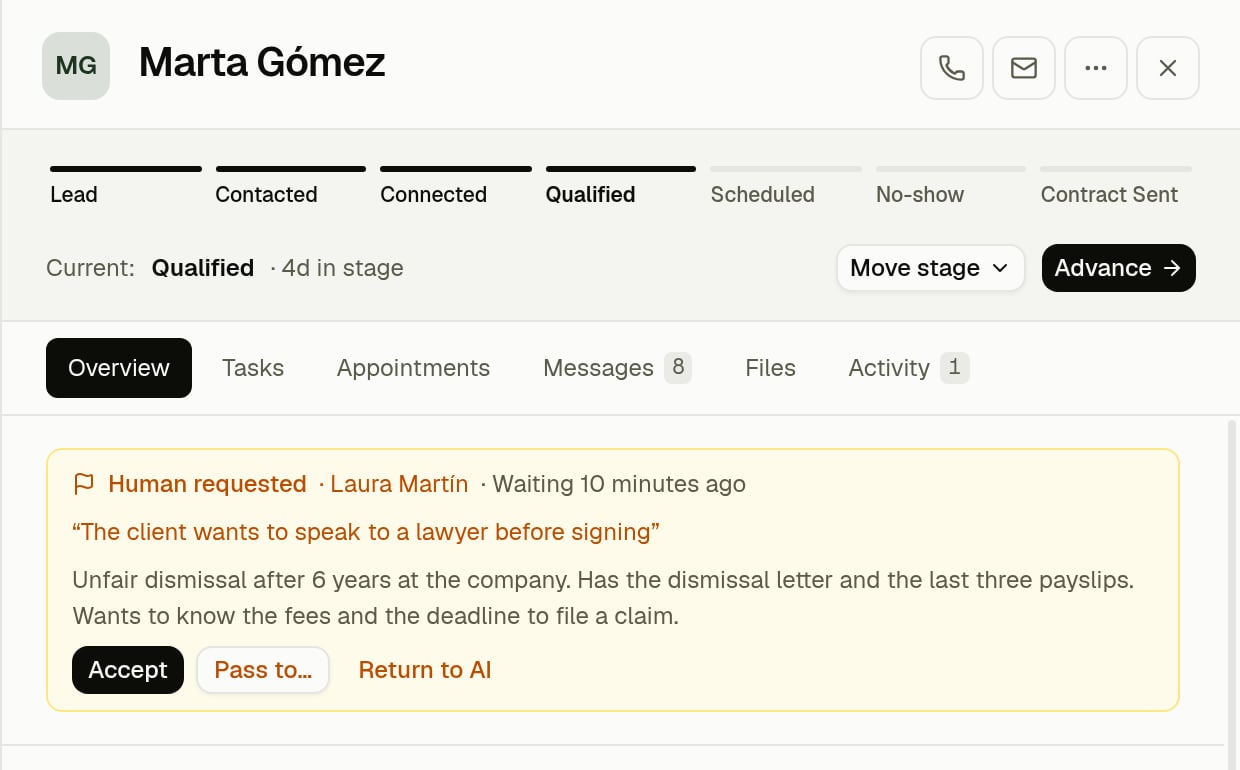
The request notice in the drawer's Overview tab
The request also appears in the Pending list on the Dashboard. Select it to open a side panel with the reason, the summary and the Accept and Pass to… buttons. Accepting opens the opportunity. Return to AI is only in the drawer and the Inbox, where you can see the conversation. The History tab keeps the outcome: Accepted or Returned to AI.
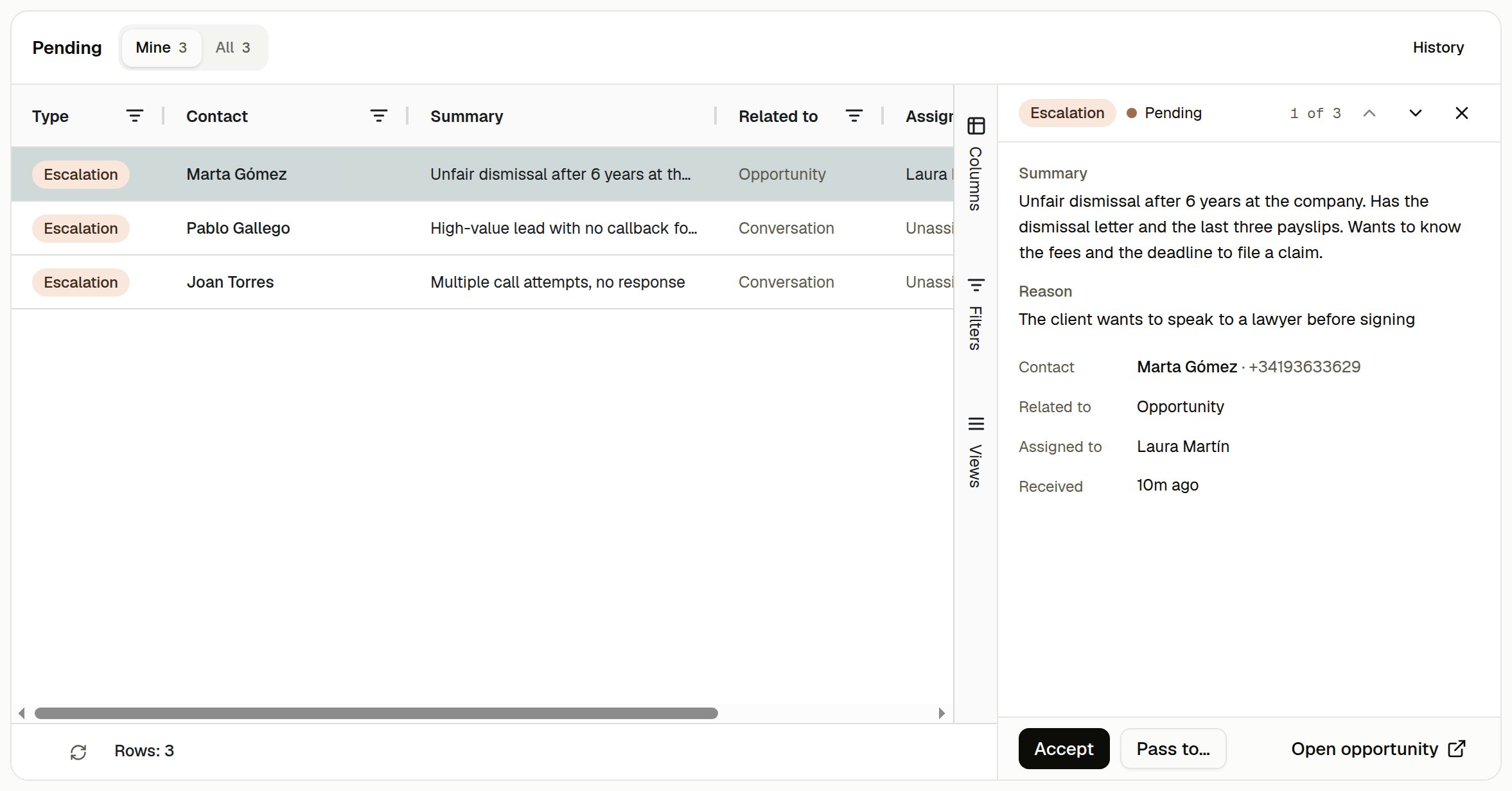
The same request in the Pending list
Change ownership by hand
The Assignee field, under Details in the drawer and in the Inbox, shows the name and the state, or AI only when nobody is assigned. Open it to change ownership without waiting for an escalation.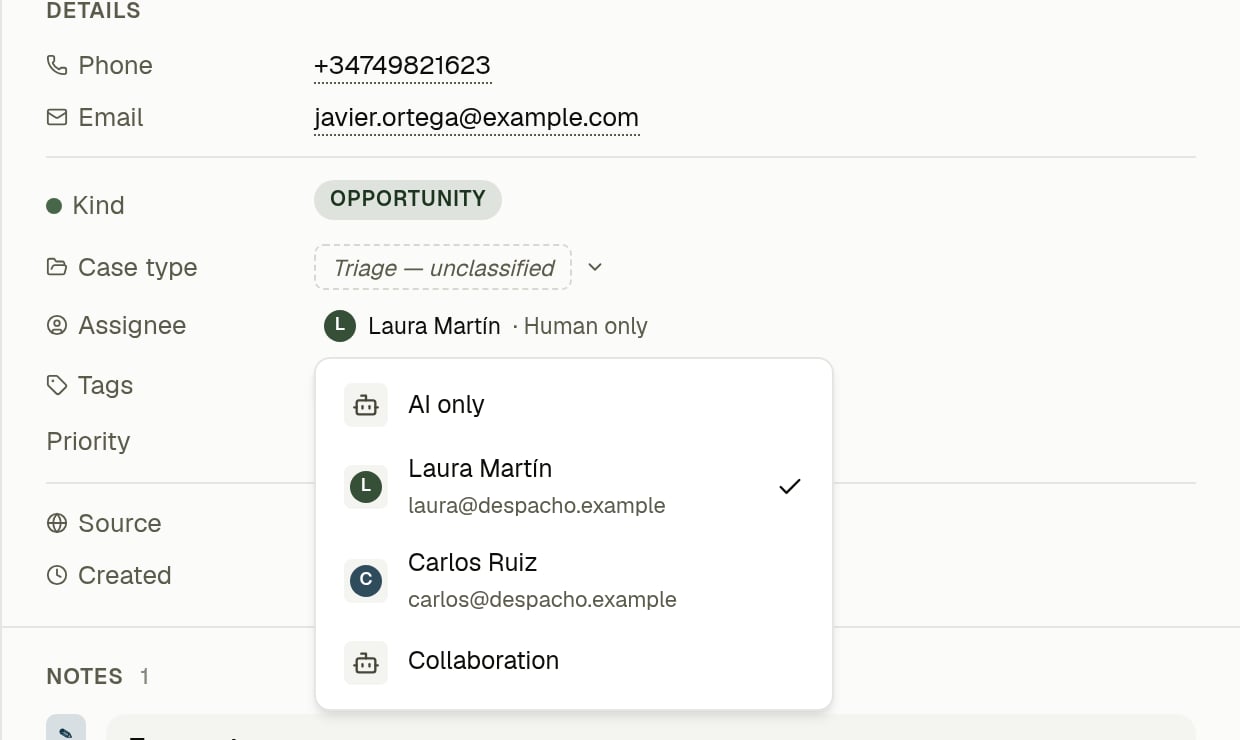
The Assignee field of an opportunity in Human only
While a request is open, you cannot change the Assignee field. Use the buttons on the notice.
On the board, the list and the activity
- Board: cards with an assigned person or an open request show the state and the avatar. Cards in AI only show a robot icon. Human requested appears in amber.
- Filters: Ownership filters by state and Assignee by person. Choose AI only in Assignee to see the opportunities with nobody assigned.
- List: the Ownership and Assignee columns show the same.
- Activity: every change is recorded, for example Escalation sent to…, Handoff accepted, Handoff passed on, Human only enabled, Collaboration enabled, Returned to the assistant and Owner assigned.
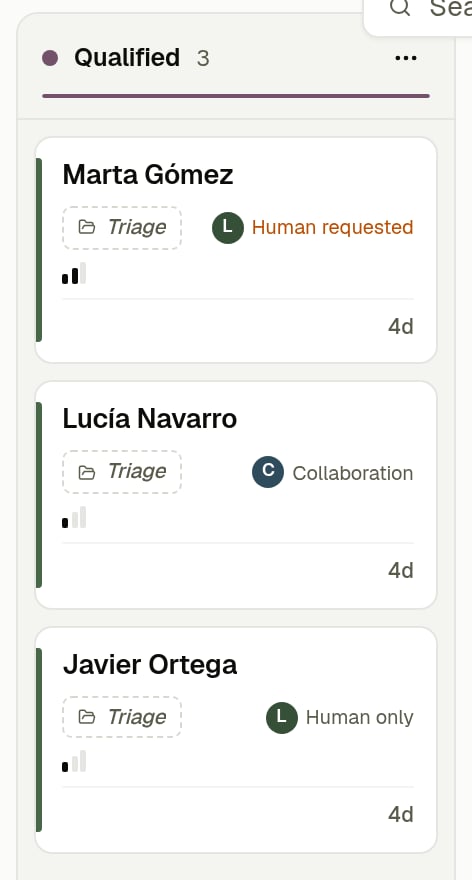
Cards with their ownership state
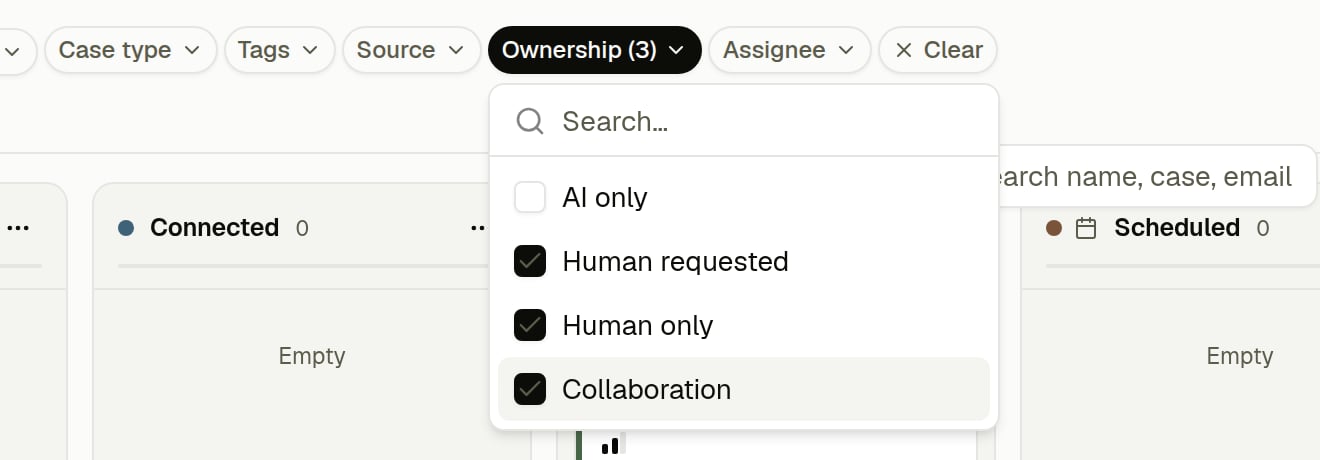
The Ownership filter
Notices
The person who is asked gets a notice in the app, by email and on Slack as soon as the request is made. If nobody answers, Juryo reminds them after 15 minutes and after 1 hour. Every morning at 09:00 (Madrid time) each person gets one summary of their requests that have waited more than an hour. The first notice and the two reminders do not follow your Notifications settings, because a client is waiting. The 09:00 summary does follow them. You can turn it off there.Pause the agent when a person is assigned, in the general settings, is a different rule. It applies to tickets, not to opportunities.